WebView2 COM Exception (0x8007139F)
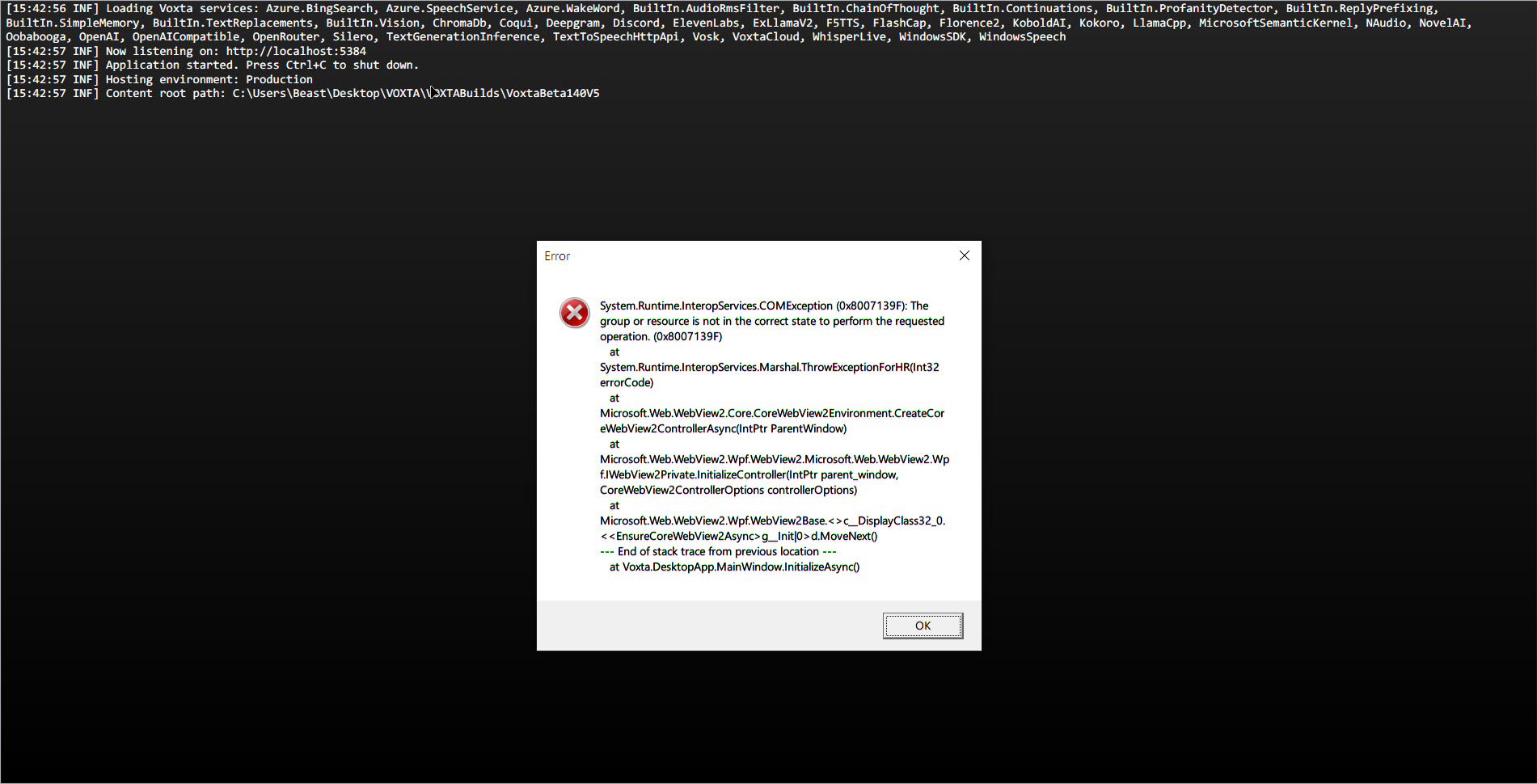
This error occurs when launching Voxta and is related to Microsoft Edge WebView2. The error message typically includes:
System.Runtime.InteropServices.COMException (0x8007139F):
The group or resource is not in the correct state to perform the requested operation.
Cause:
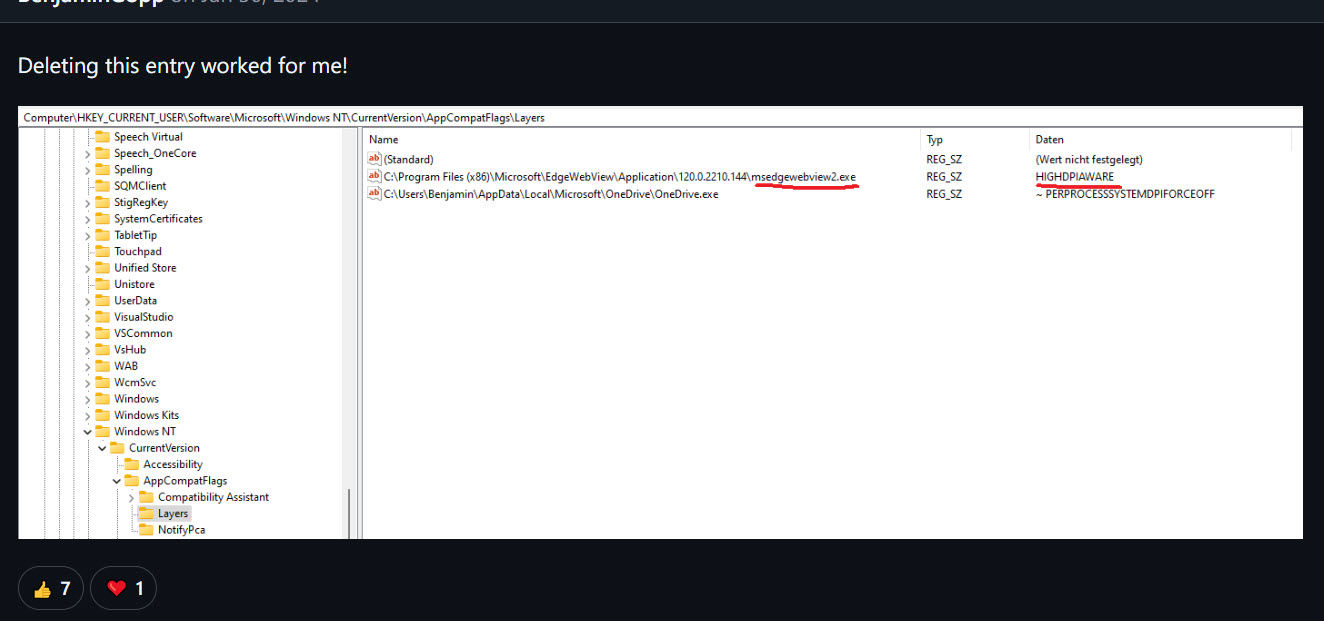
The issue is often caused by an incorrect entry in the Windows registry under AppCompatFlags/Layers, affecting msedgewebview2.exe.
Solution:
Deleting the problematic registry entry can resolve the issue:
-
Open Registry Editor (Win + R, type
regeditand press Enter). -
Navigate to:
HKEY_CURRENT_USER\Software\Microsoft\Windows NT\CurrentVersion\AppCompatFlags\Layers -
Look for an entry containing msedgewebview2.exe
-
Right-click the entry and select Delete
-
For more details, see the related discussion:
Voxta Cannot Run from a Folder with Spaces
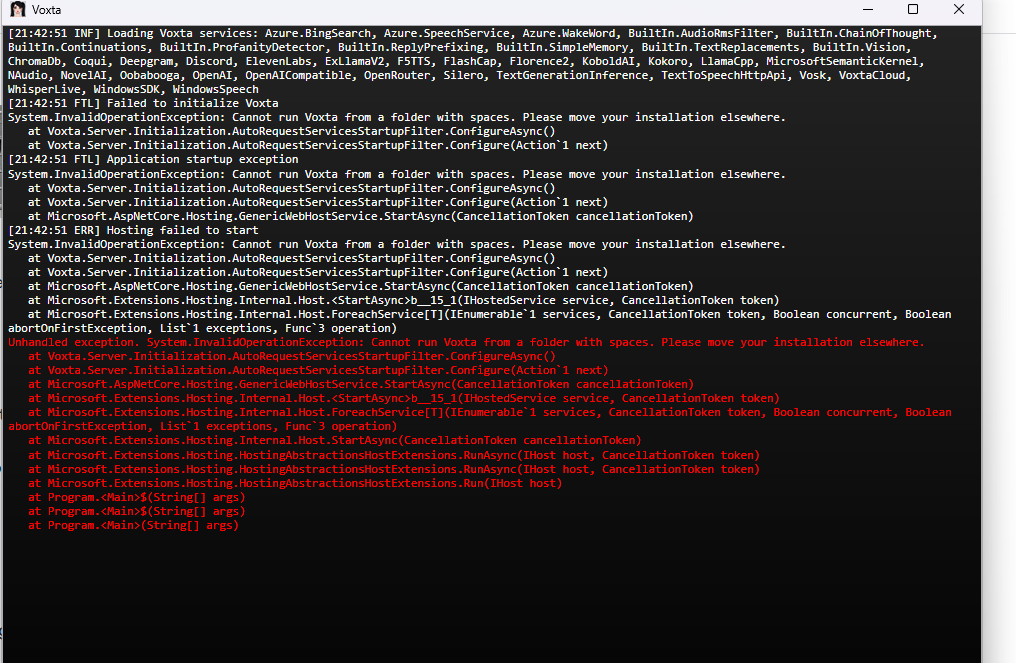
Voxta fails to initialize and throws an InvalidOperationException when installed in a folder containing spaces. The error message appears as:
System.InvalidOperationException: Cannot run Voxta from a folder with spaces. Please move your installation elsewhere.
Cause
Voxta does not support being installed in a directory with spaces in its name. This limitation affects service startup and hosting initialization, leading to a failure during application startup.
Solution
-
Move the Voxta installation folder to a directory without spaces.
-
Invalid installation paths:
C:\Users\John Doe\Voxta D:\My Applications\Voxta -
Valid installation paths:
C:\Voxta
D:\Apps\Voxta
-
-
Update any shortcuts or scripts referencing the old path to reflect the new location.
-
Restart Voxta after relocation to ensure proper initialization.
Additional Notes
- This restriction ensures compatibility with internal path resolution and dependency management.
- If moving the folder is not feasible, consider using symbolic links or renaming parent directories to remove spaces.
Failed to Decrypt Data (After Reinstalling Windows, Moving PC, or Restoring a Backup)
When launching a service (for example Oobabooga, OpenAI, ElevenLabs), Voxta shows an error similar to:
Failed to decrypt data. This may happen with API keys when Windows does not have the same key, for example when copying on another machine. Re-enter your API key or secret in the configuration of the module you are trying to use.
The inner exception comes from System.Security.Cryptography.ProtectedData.Unprotect and typically reads “parameter error”.
When this happens
You will see this error after any of the following, even if Voxta itself was not touched:
- You reinstalled Windows on the same PC (the most common cause — a fresh install wipes the DPAPI keys even when you keep the same username).
- You restored Windows from a system image onto a new disk, new hardware, or a rebuilt profile.
- You copied the Voxta
Data/folder to another PC. - You signed in as a different Windows user than the one that originally saved the secrets.
- You restored your Windows user profile after corruption, a domain migration, or a password reset through certain recovery paths.
If you answer “yes” to any of those and you kept your old Voxta Data/ folder, this is the expected behavior — not a Voxta bug.
Cause
Voxta uses the Windows Data Protection API (DPAPI) to encrypt secrets such as API keys before storing them in the Data/ folder. DPAPI encrypts with a key that is derived from the specific Windows user account on the specific machine installation where the secret was saved.
Reinstalling Windows creates a brand-new set of DPAPI keys, even if you pick the same username and password afterwards — the underlying account and machine identifiers are different. Because of that, every secret that was encrypted before the reinstall becomes unreadable on the new install. This is by design: it prevents anyone who gets hold of the Data/ folder (or an old disk) from extracting your API keys.
Solution
Re-enter each secret in the Voxta UI:
- Open the settings of the module that failed (for example Oobabooga, OpenAI, ElevenLabs).
- Re-type the API key or secret in the corresponding field.
- Save — Voxta will re-encrypt it using the current Windows installation’s DPAPI key.
- Repeat for every module that stores a secret. The error will surface module-by-module as you use them.
Additional Notes
- If the module does not actually require an API key (Oobabooga running locally, for example), you can simply clear the field and save — there is no need to enter anything.
- There is no supported way to migrate DPAPI blobs between Windows installations, accounts, or machines; that is the security guarantee DPAPI provides.
- If you are planning to reinstall Windows or move Voxta to another PC, write down or re-export your API keys from the original services (OpenAI dashboard, ElevenLabs account, etc.) before the move, so you can paste them back in afterwards.