 Voxta
Voxta Troubleshooting
Fix common Voxta problems in Virt-A-Mate: slow replies, a character that won't speak, VRAM pressure, and a plugin stuck on Disconnected.
Slow character responses
If the character feels sluggish — long pauses before speaking, choppy turns — work through these in order.
1. Cap your VAM framerate
Uncapped VAM eats GPU cycles that your local LLM needs. Cap VAM to 60, 72, or 90 FPS at the driver level and apply the rest of the optimization guide.
Most common cause of slow responses on a local-LLM setup.
2. Disable VamMoan if it's in the scene
VamMoan and Voxta both write to the Person atom's head audio source. With both active, Voxta speech queues behind VamMoan output and the character appears mute or laggy.
Disable VamMoan on scenes where Voxta is the speaker.
3. Check your VRAM headroom
If you're running an LLM locally on the same GPU that runs VAM, the LLM will slow drastically if you hit your VRAM limit. The model spills into system RAM and inference falls off a cliff.
Open Task Manager (Ctrl + Shift + Esc), go to the Performance tab, select your GPU. Watch the Dedicated GPU memory line while both apps are running.
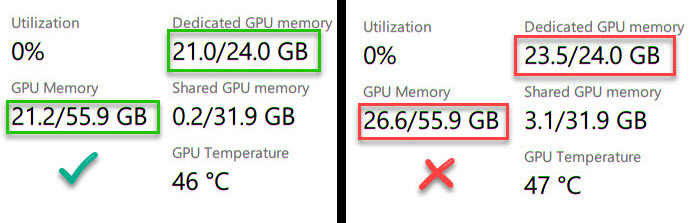
If you're at or near your VRAM cap:
- Run a smaller / more quantized LLM model.
- Reduce VAM's MSAA and pixel lights (see Optimizing VAM).
- Move the LLM to another machine, or use Voxta Cloud so the LLM doesn't compete with VAM at all.
Character won't speak
If the character types in chat but doesn't speak:
whitelist_domains.jsonnot configured — open the file at the root of your VAM install and add your Voxta host (default127.0.0.1:5384). See Install the plugin → security setup.- VAM security: Web Images and Audio disabled — enable it in User Preferences → Security.
- VamMoan is hogging the audio source — disable it (see above).
- Lipsync is enabled but the voice service is silent — verify your TTS service is configured and working in Voxta Talk first.
Plugin shows "Disconnected"
- Voxta Server isn't running.
- Wrong host or port in the plugin's Connection tab.
- VAM's Allow Plugins Network Access is off — turn it on in User Preferences → Security.
- Server requires an API key but the plugin doesn't have one — paste your key into the API Key field on the Connection tab.
"Some resources are missing" but nothing installs
This message means the scene is trying to auto-install a character / scenario / package the user doesn't have. If it doesn't install:
- The bundled PNG inside the
.vardoesn't match the resource UUID the scene references. See VAR packages → troubleshooting. - The user already has the resource (under a different version) — manifests as the message appearing once but the resource staying unchanged.