 Voxta
Voxta FPS cap
Cap VAM's framerate at the GPU driver level so it leaves headroom for Voxta and any local LLM.
Capping VAM's FPS at the driver level reduces GPU load and leaves cycles for Voxta's voice/STT services and your local LLM.
Recommended: 90 FPS for VR users, 60-90 FPS for desktop. Match your VAM physics rate to whatever cap you pick. See Optimizing VAM for the full reasoning.
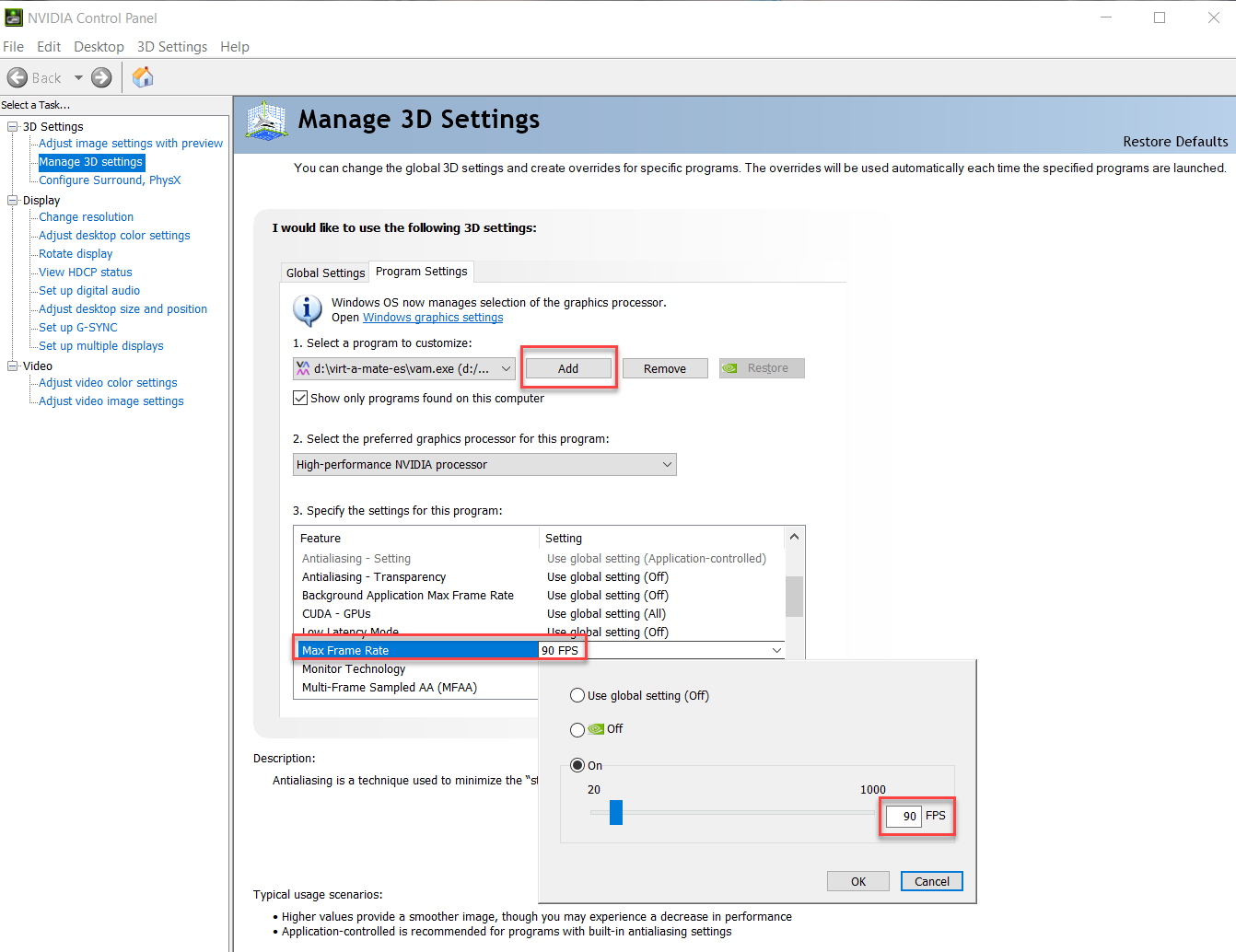
NVIDIA Control Panel
- Right-click your desktop → NVIDIA Control Panel.
- Manage 3D settings (under 3D Settings on the left).
- Program Settings tab.
- Find Virt-A-Mate (
VaM.exe) in the dropdown. If it's not there, click Add and browse to it. - Scroll to Max Frame Rate. Set it to your target FPS.
- Click Apply in the bottom-right.