 Voxta
Voxta UI tour
A tour of Voxy's interface: the desktop avatar, the character list and the chat panel, plus assigning a VRM to each Voxta character.
Voxy's interface is split into three pieces.
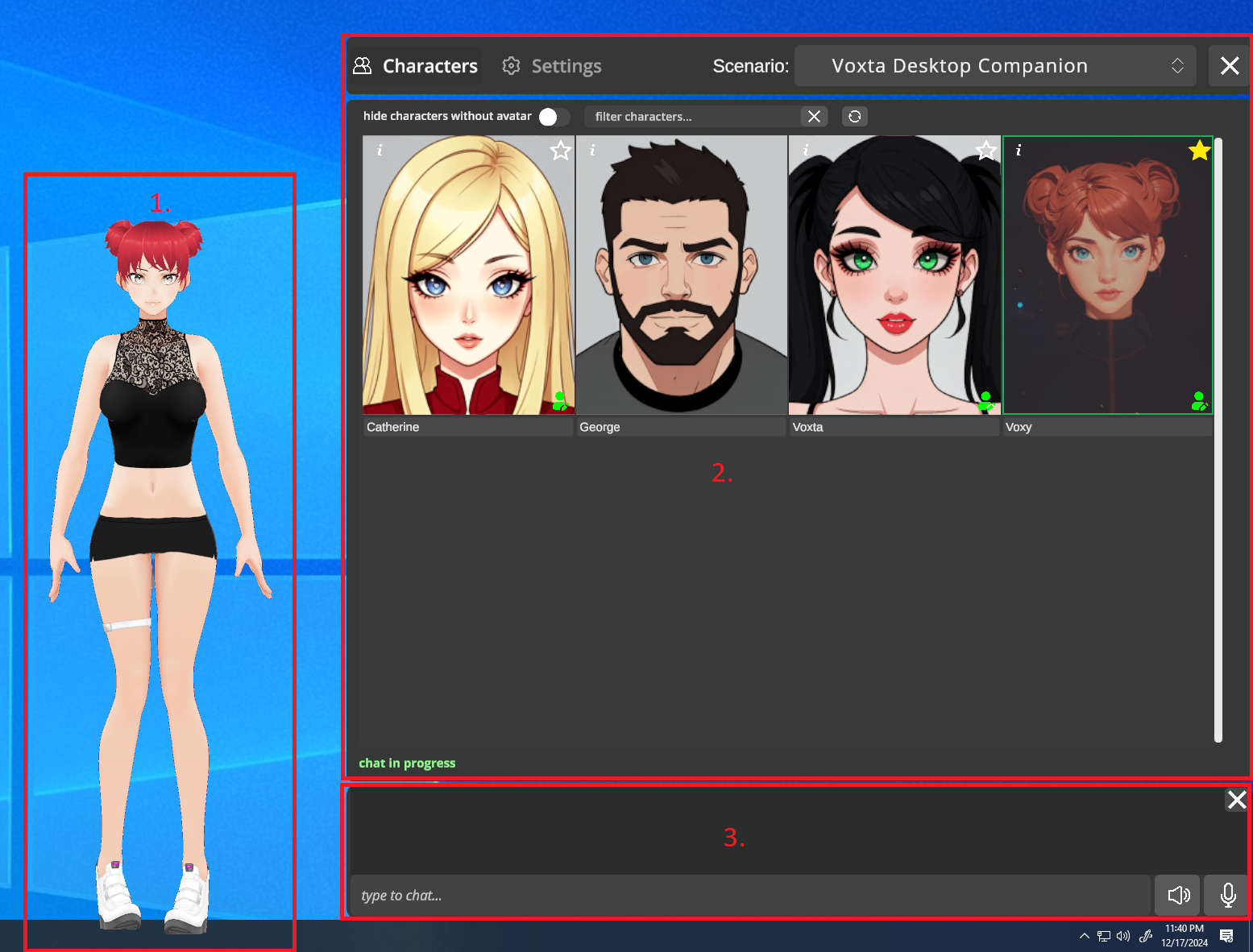
- Avatar — your character's VRM on the desktop. Drag, resize, and rotate it freely.
- Characters — pick which Voxta character is active. Filter, assign avatars, mark a default.
- Chat — type or speak. Toggle TTS and STT on the fly.
Assigning a VRM to a character
Each Voxta character can have its own VRM avatar. If a character doesn't have one assigned, Voxy falls back to the default Voxy.vrm that ships with the app.
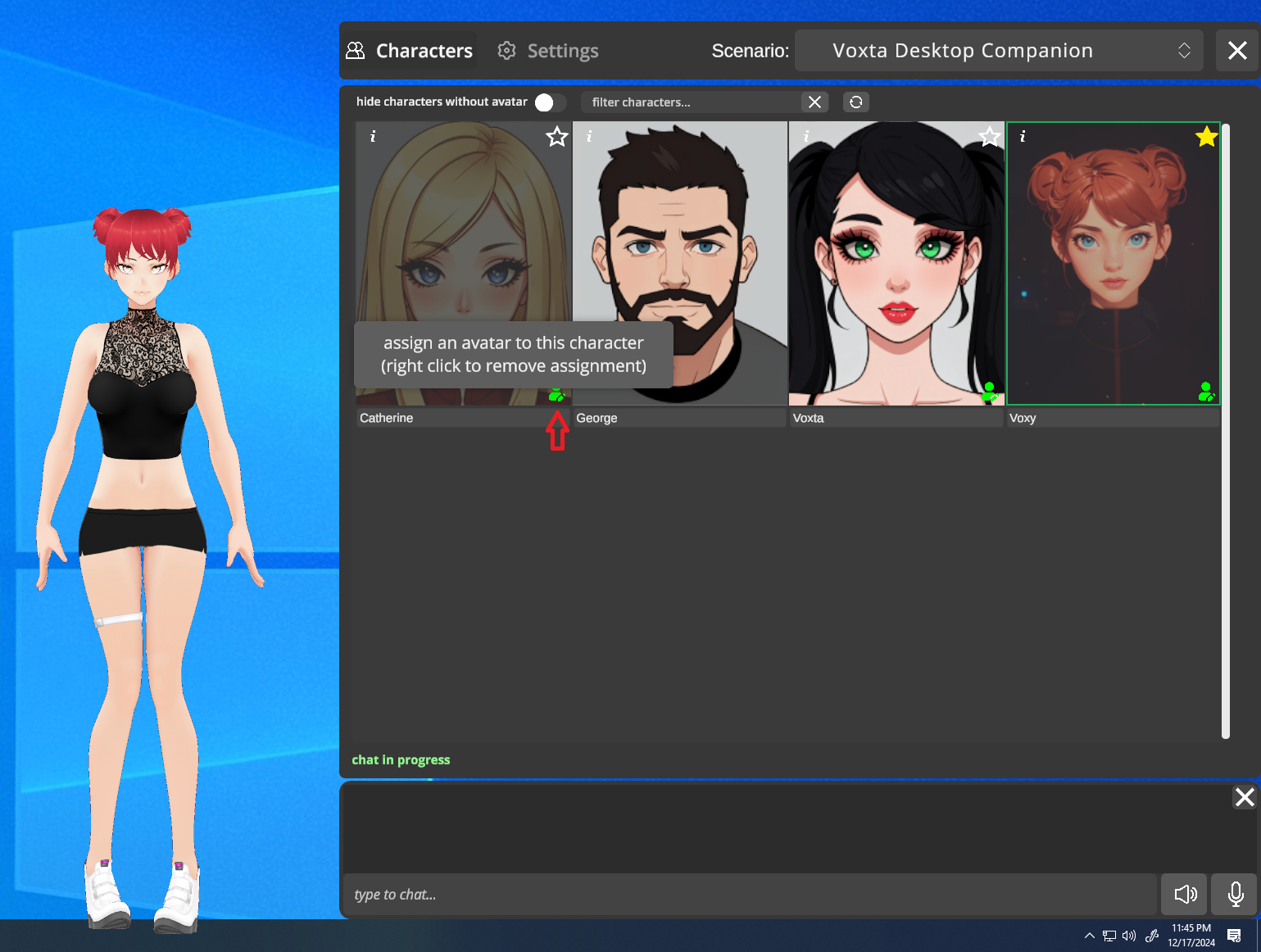
Click the green assignment icon on a character card to open the avatar picker. If a character has no avatar yet, clicking the card itself also opens it.
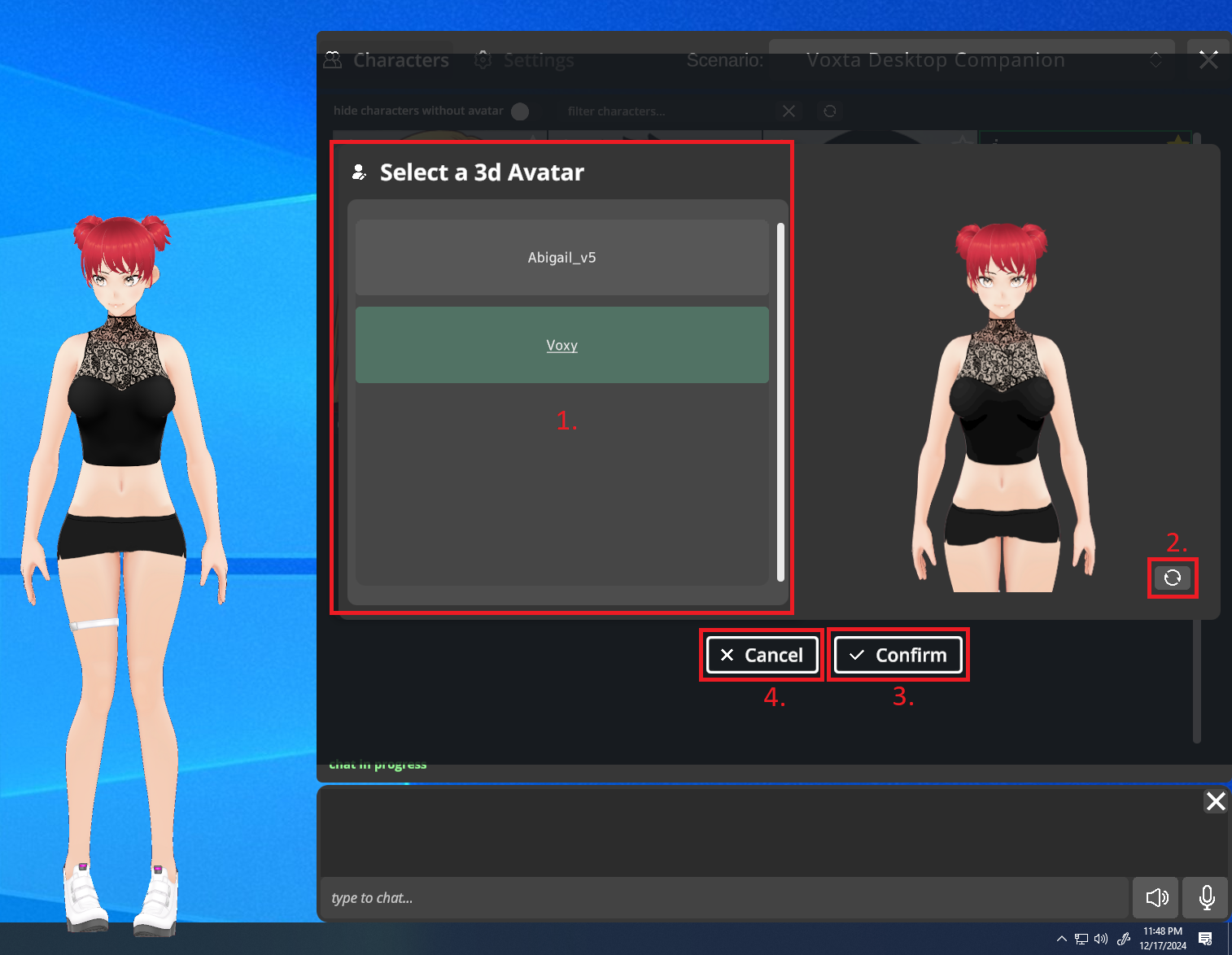
In the avatar picker you can:
- Click an avatar name to preview it
- Click the rotate button to turn the preview around
- Click confirm to bind it to the character
Default character
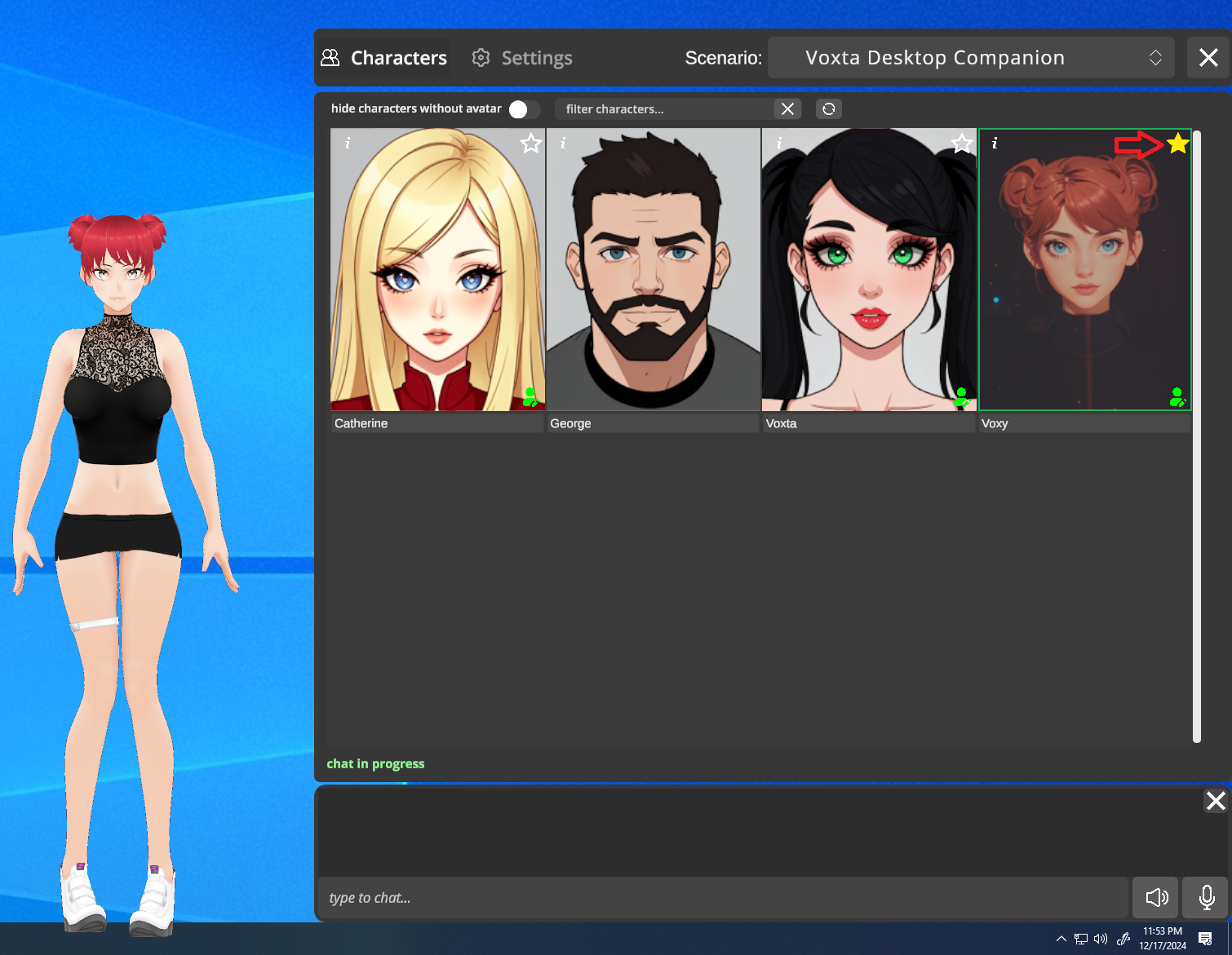
A character with a star icon is the default — Voxy auto-loads it on launch. Only one character can be the default at a time.
Scenarios
The scenario dropdown lets you pick which scenario the character runs in. Voxy ships with a Voxy Desktop Companion scenario that's wired up with app triggers (the bits that make the avatar emote, glance, react, etc.). Using a different scenario without those triggers means the avatar will just sit and talk.
You can clone the Voxy Desktop Companion scenario in Voxta Studio if you want to customize it without losing the triggers.
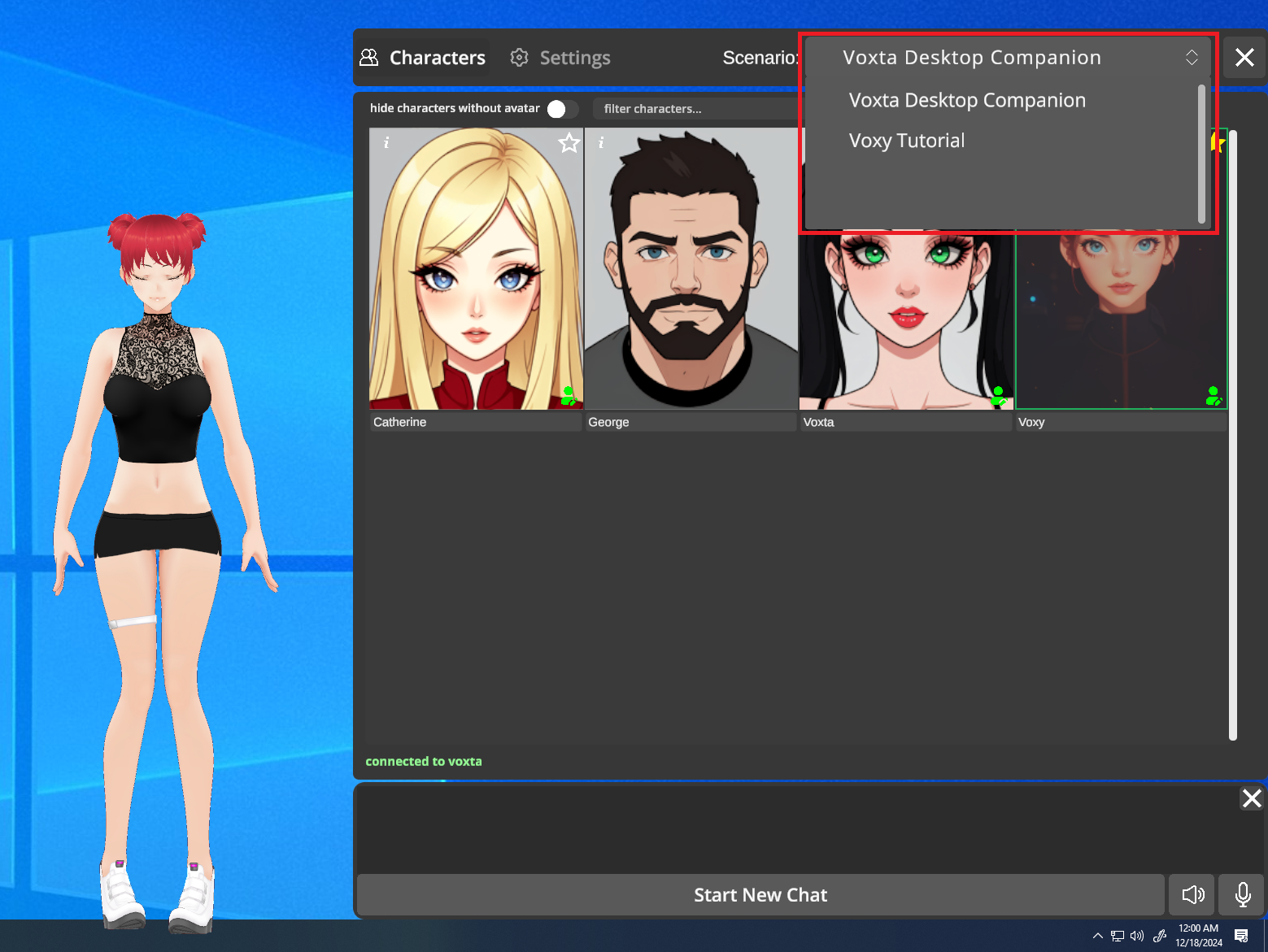
The scenario can only be changed before starting a chat. Once a chat is running, the dropdown is locked.
Starting and managing a chat
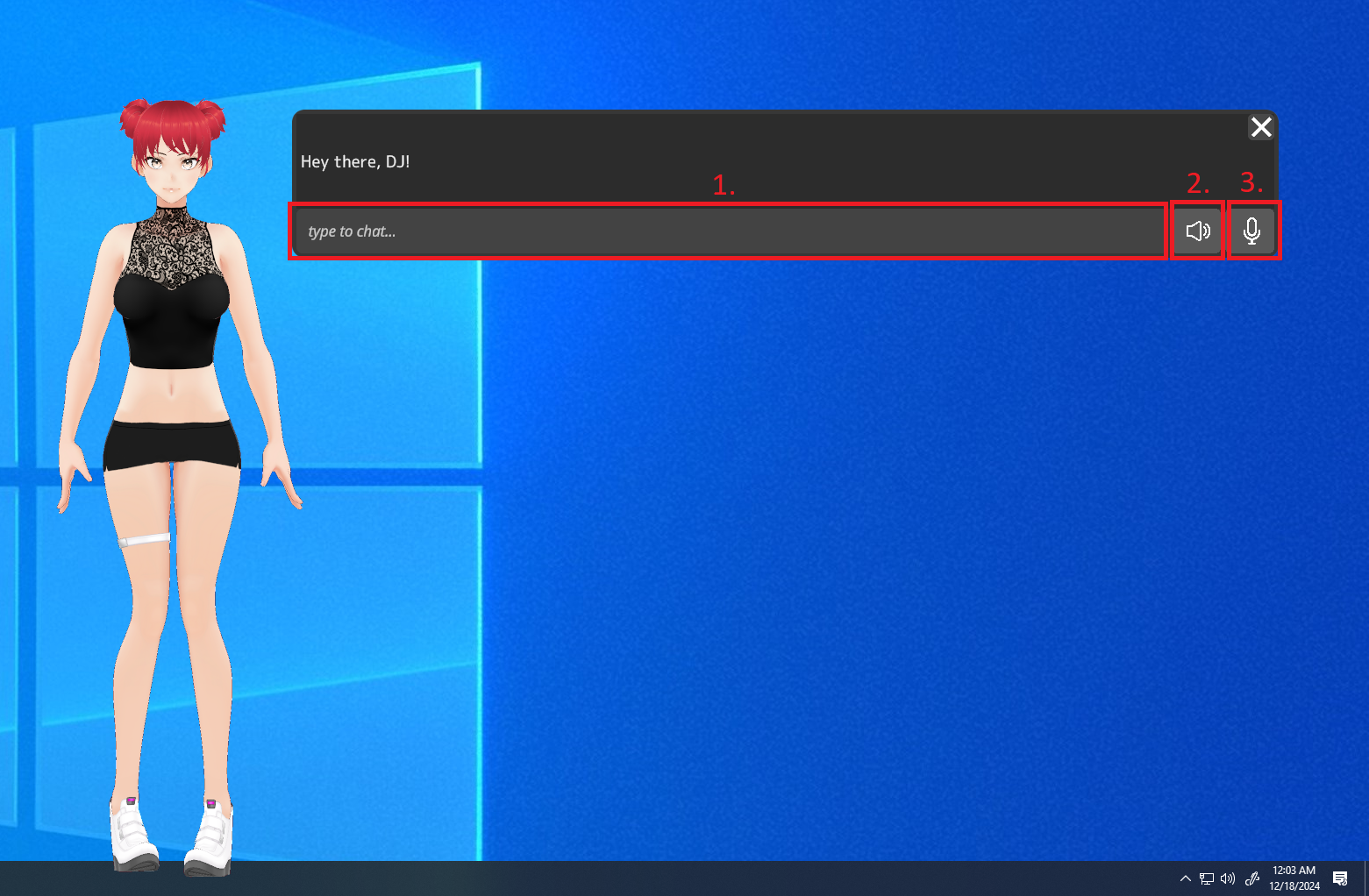
- Start New Chat — connects to a fresh chat with the selected character. Once it's running, type into the input field and hit Enter to send.
- Toggle TTS — mute or unmute the character's voice. Useful when you want to read instead of listen.
- Toggle STT — mute or unmute your microphone. Voxta won't transcribe anything while it's off.
Context menu (right-click)
Right-click anywhere on the avatar to open Voxy's context menu. Right-click again on the avatar to close it.
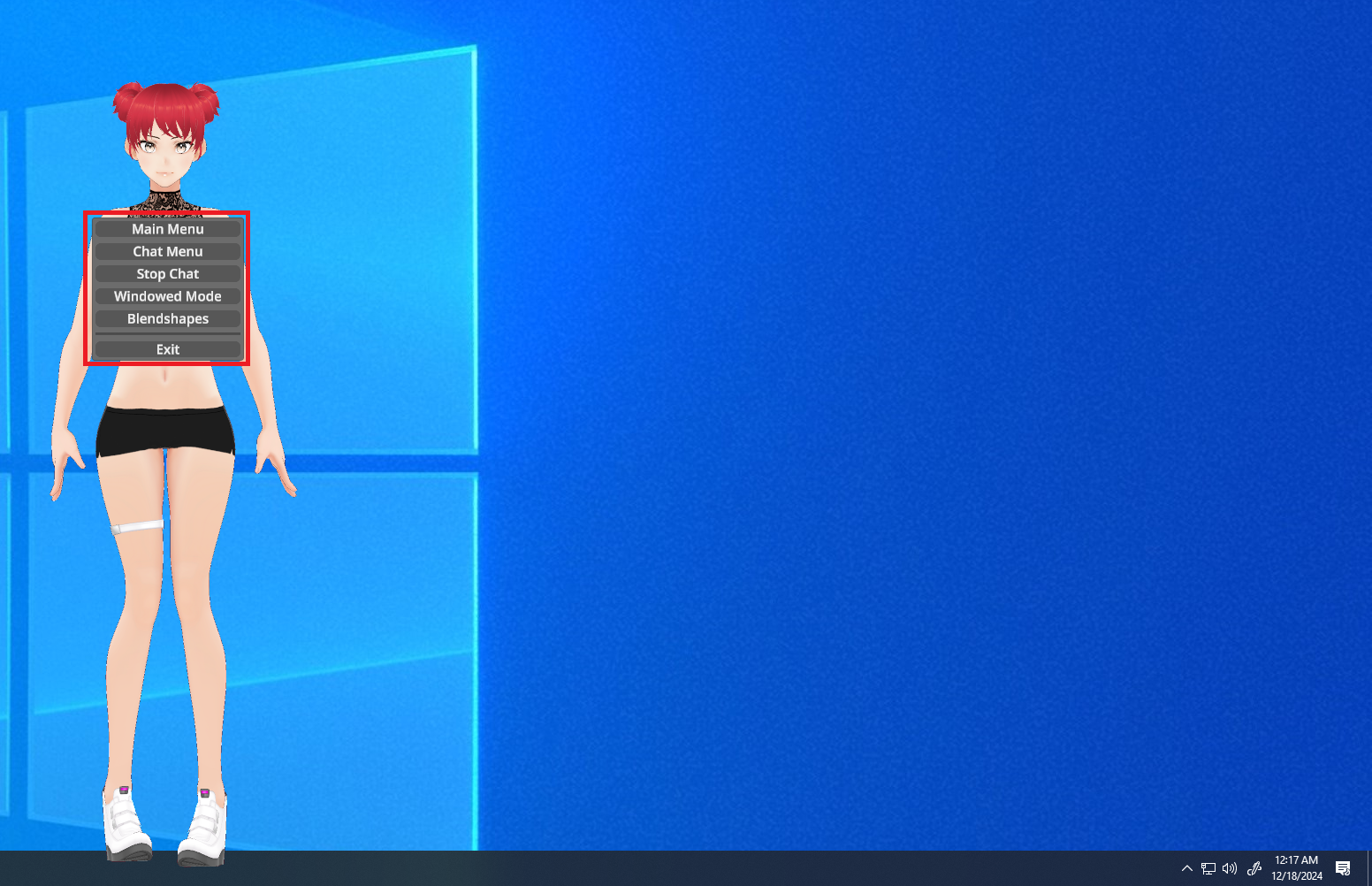
From the context menu you can:
- Toggle the Character and Chat panels on or off (clean view = just the avatar)
- Start or Resume a chat
- Toggle Windowed Mode — useful for dragging Voxy to a second monitor
- Exit the app